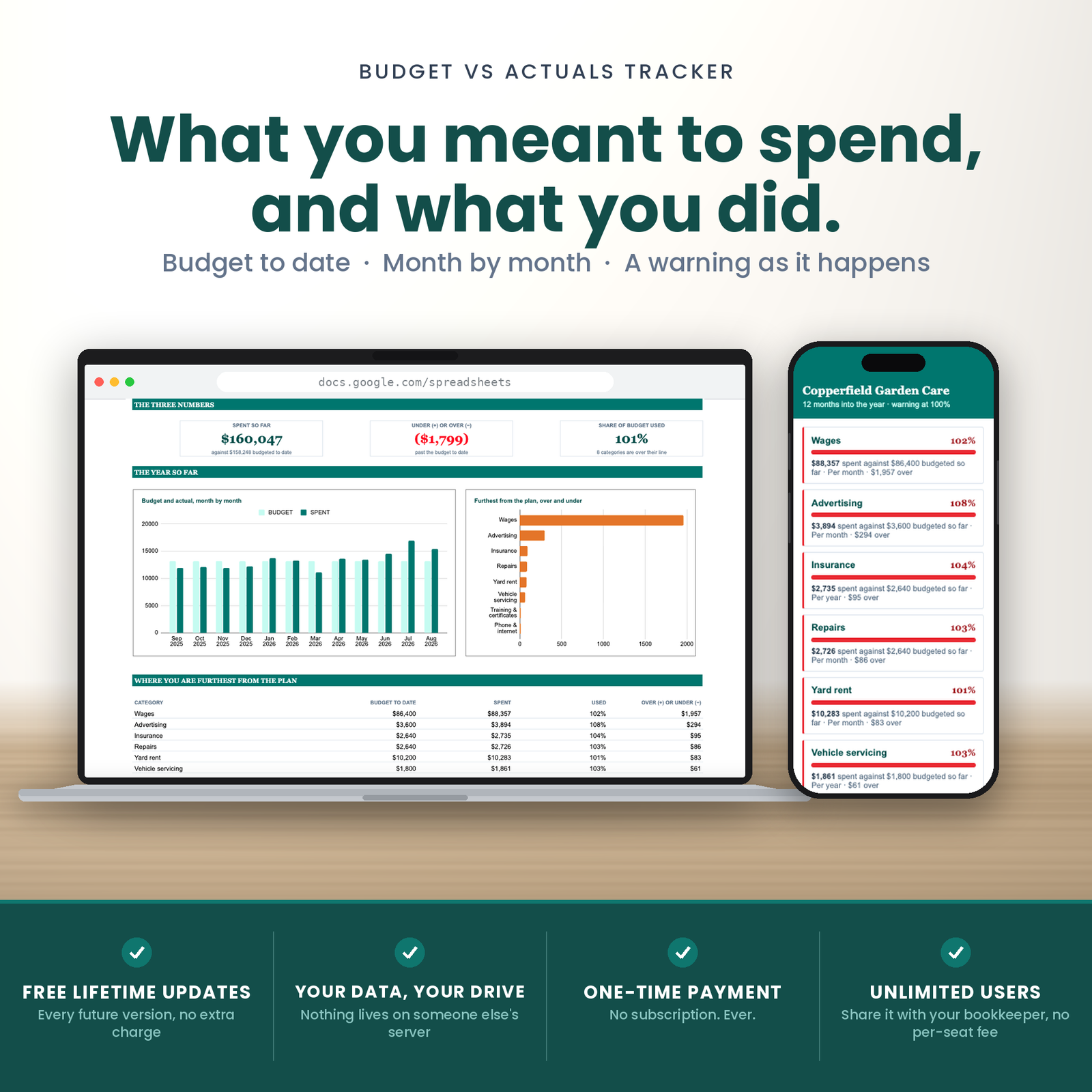
This is a budget vs actual spreadsheet for Google Sheets that answers one question properly: am I over, and where?
What you are buying
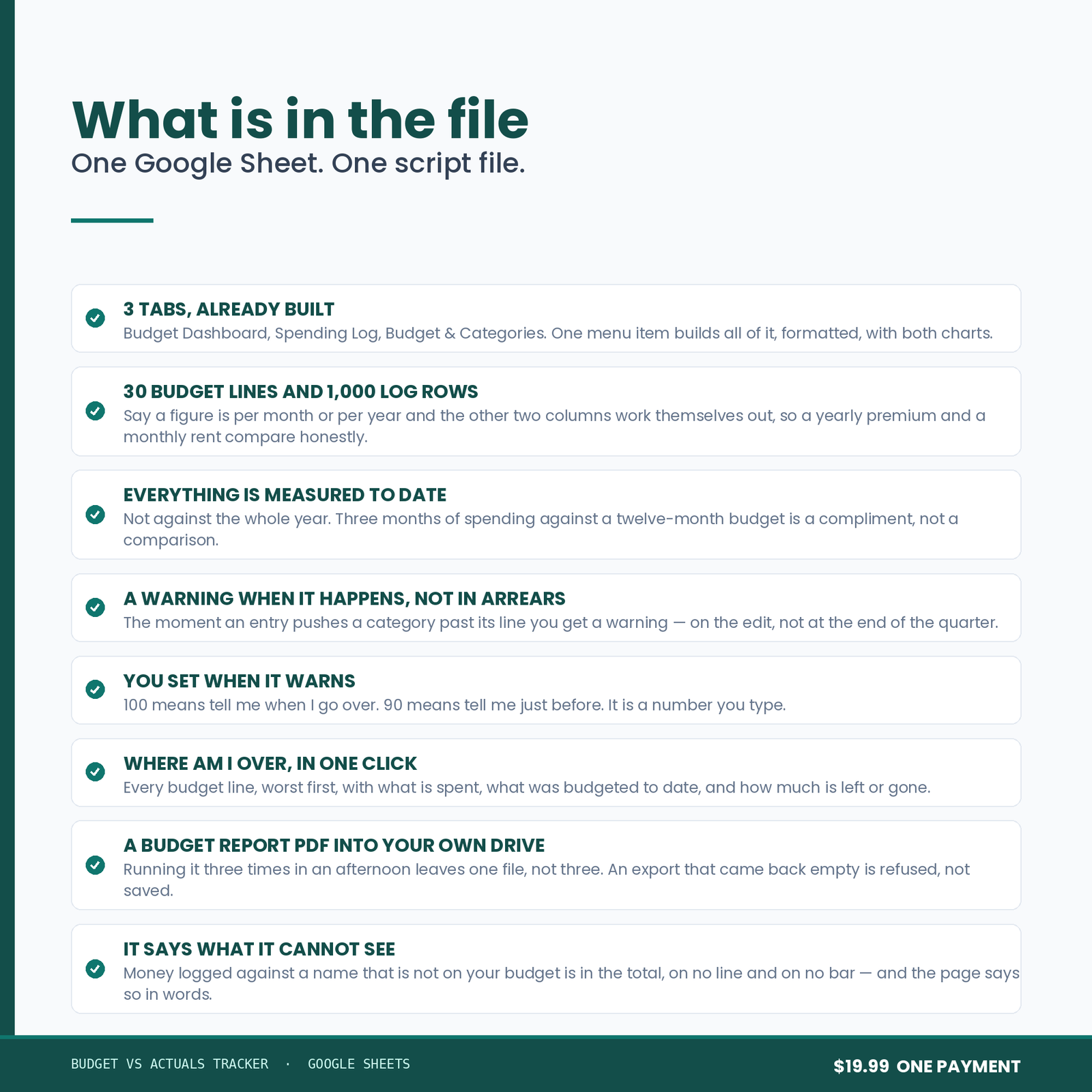
One Google Sheet, copied into your own Drive from a link. Three tabs, built for you in a single run, with two charts and a one-click Budget Report PDF into your own Drive.
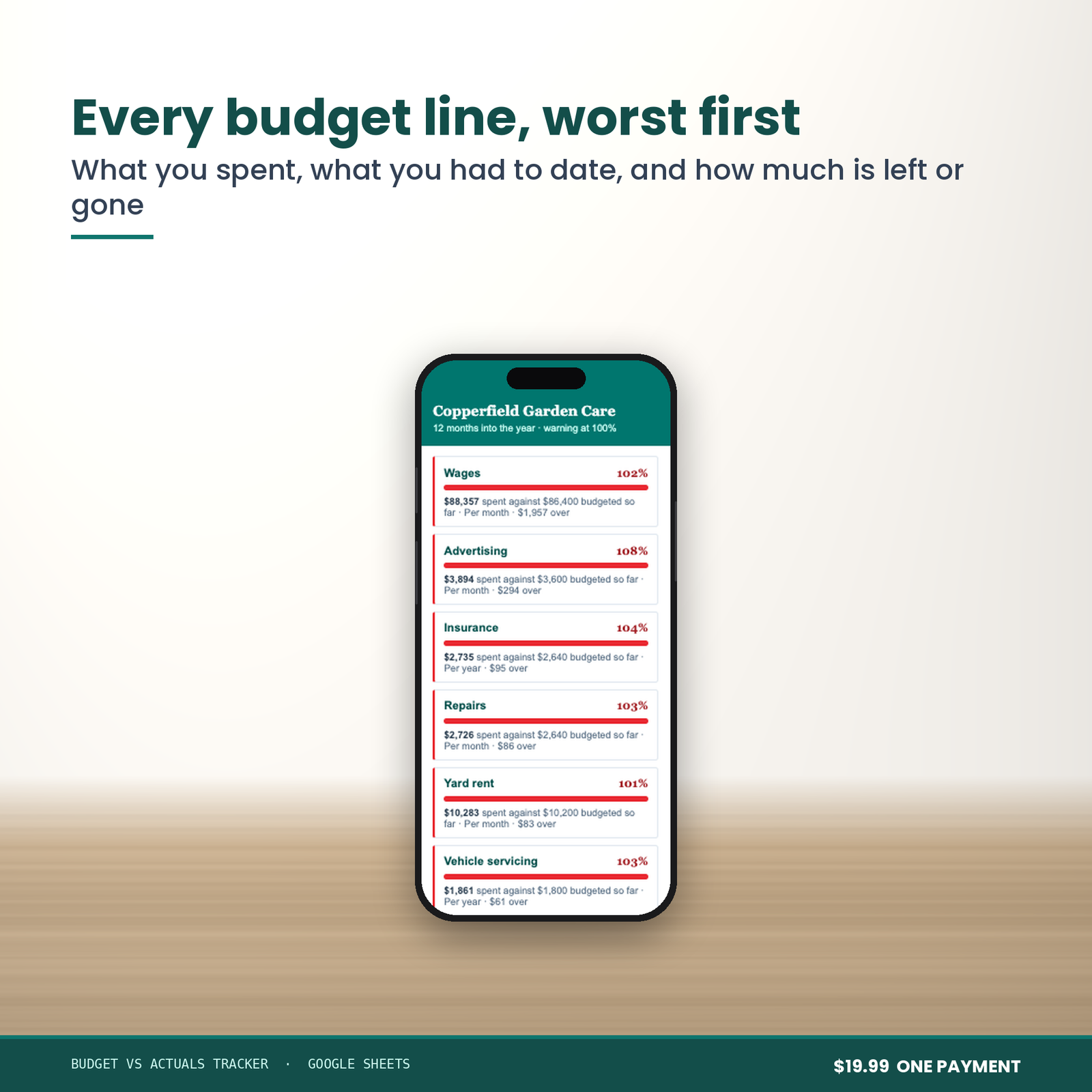
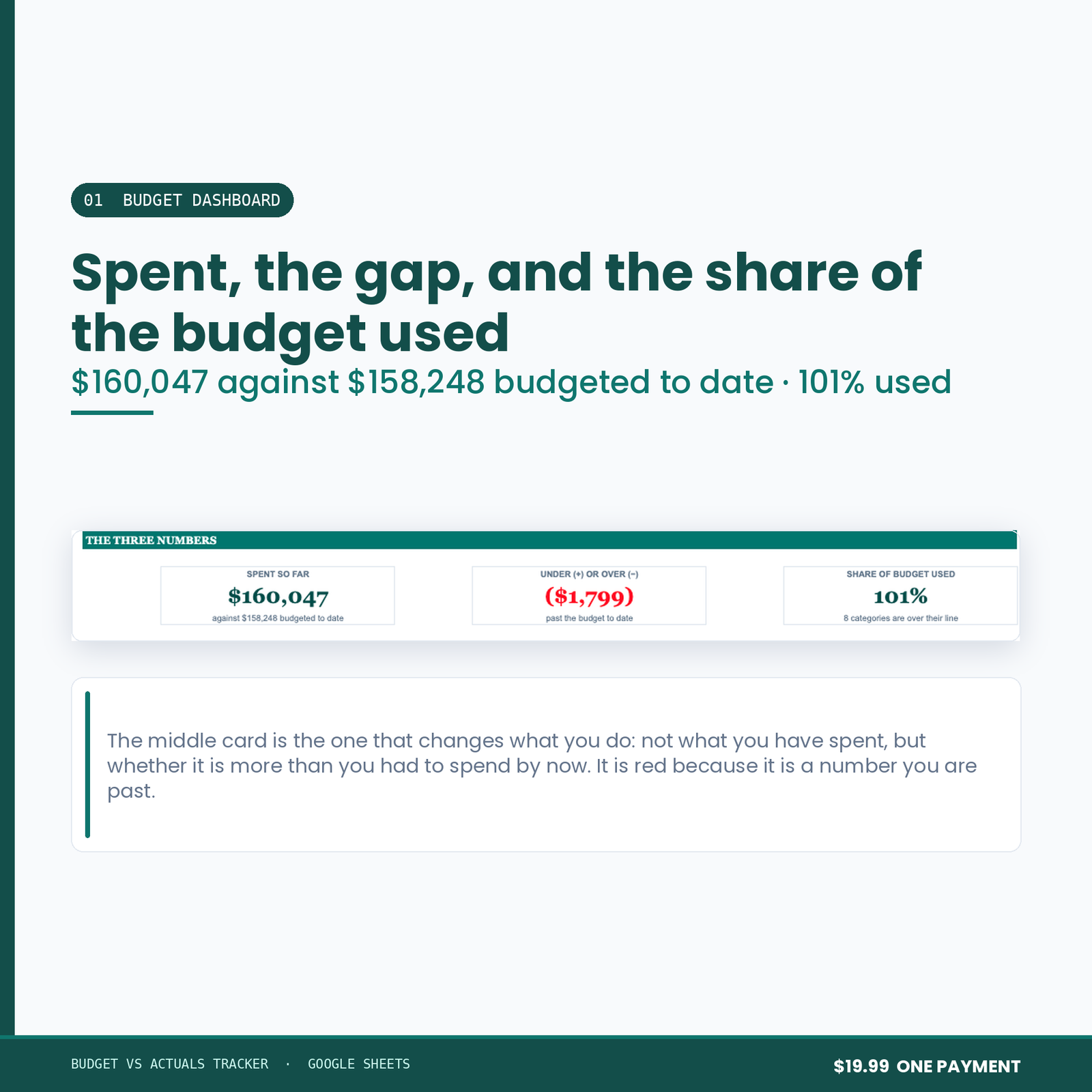
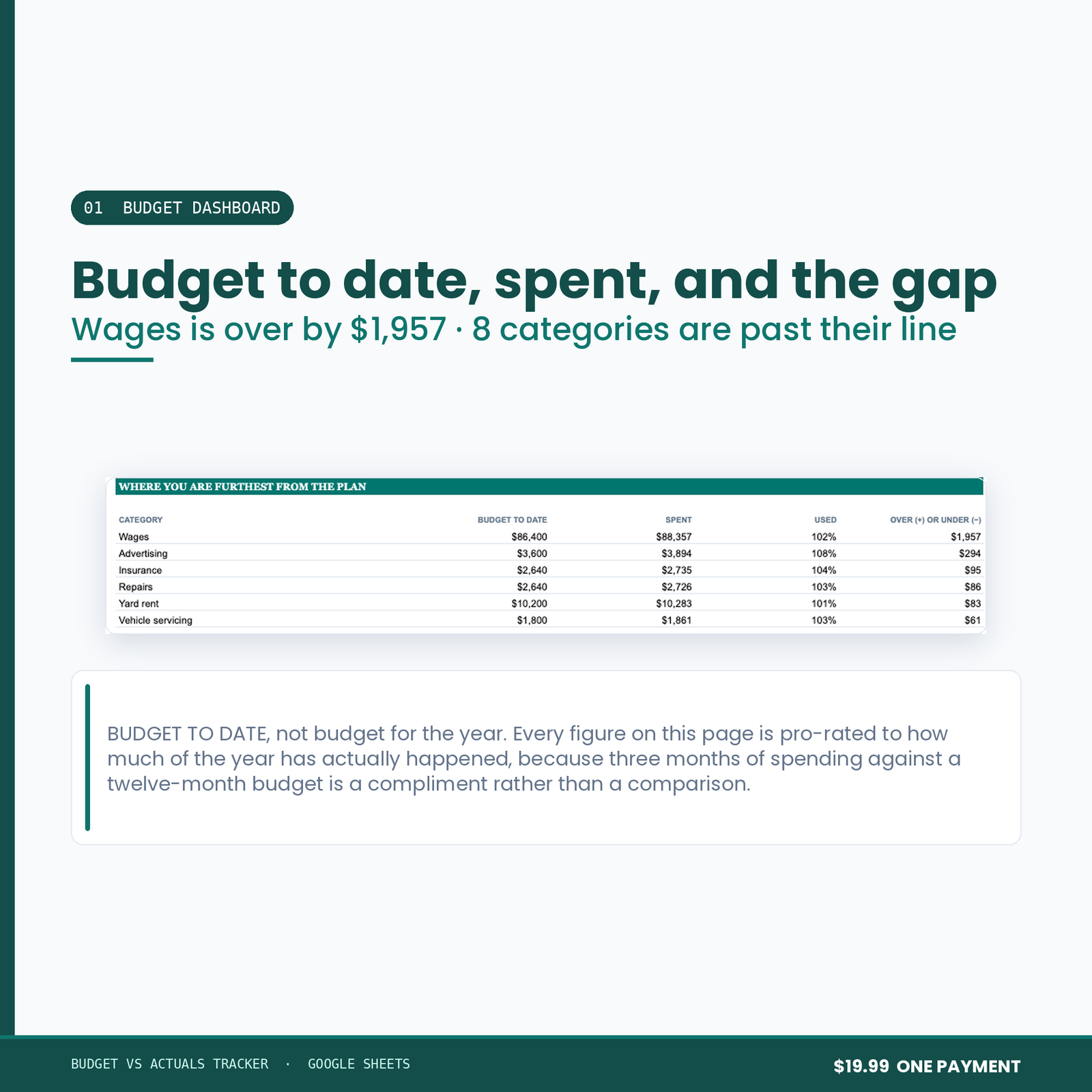
- 01 Budget Dashboard — where you are against plan, and the categories furthest from it
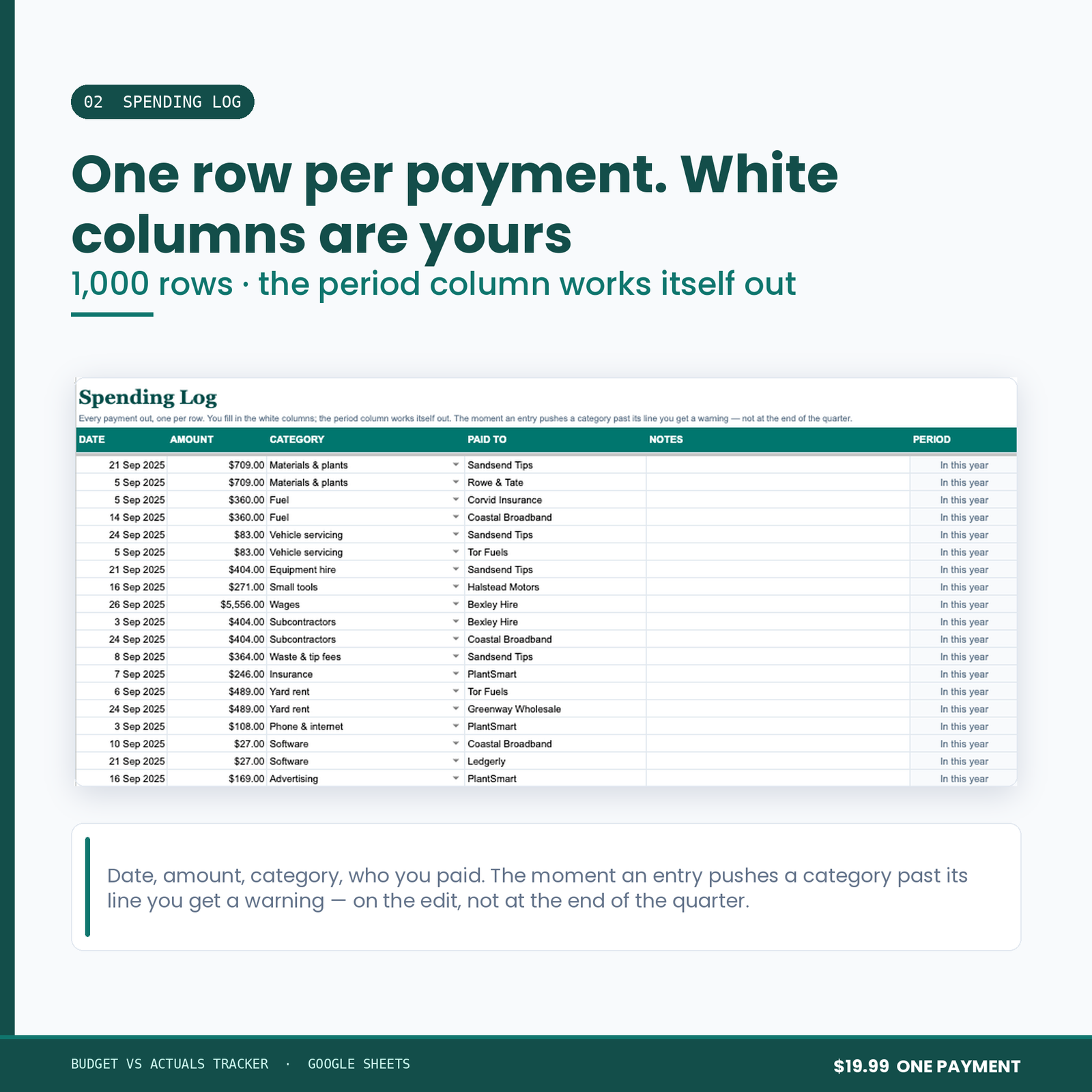
- 02 Spending Log — a thousand rows, categorised
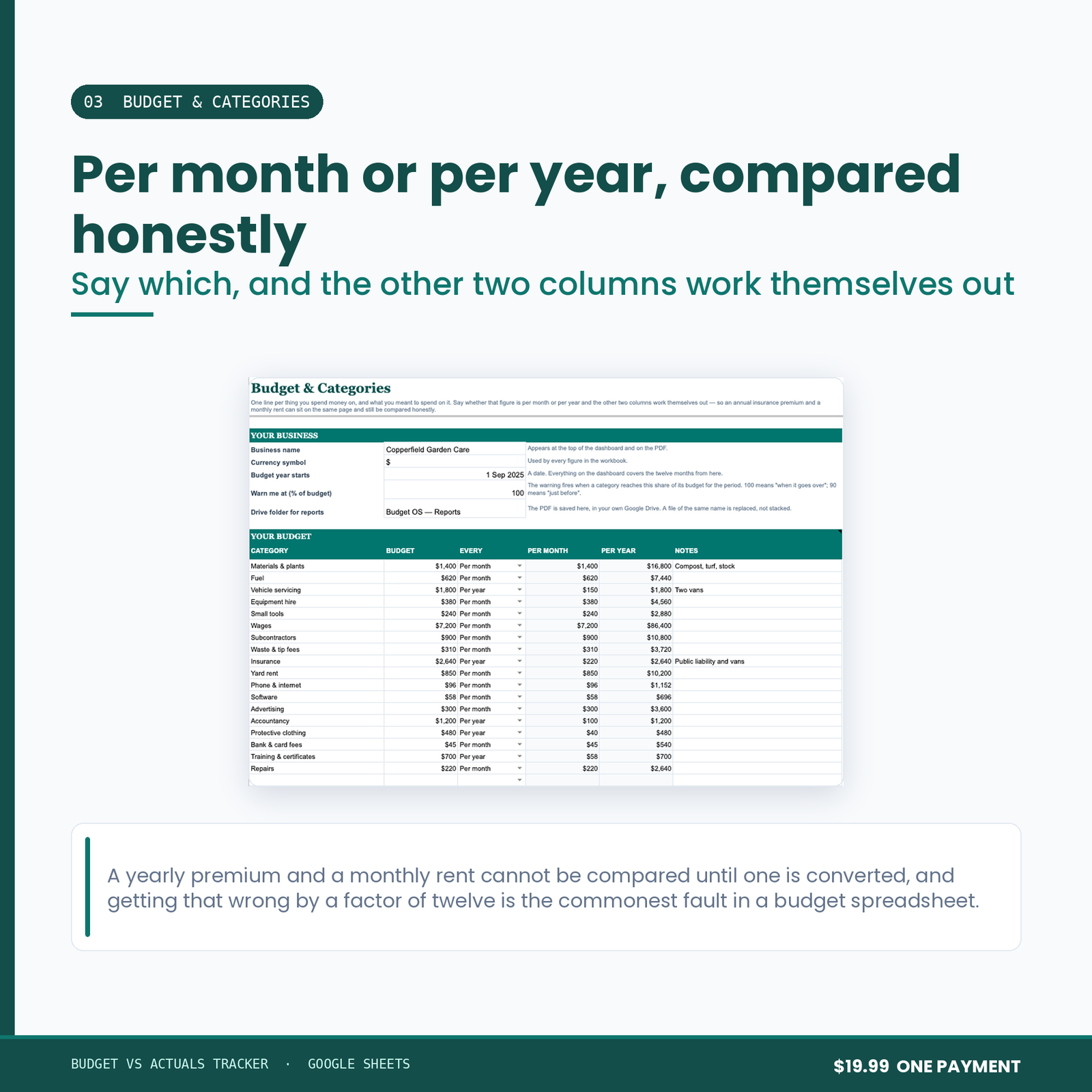
- 03 Budget & Categories — the plan you are measuring against
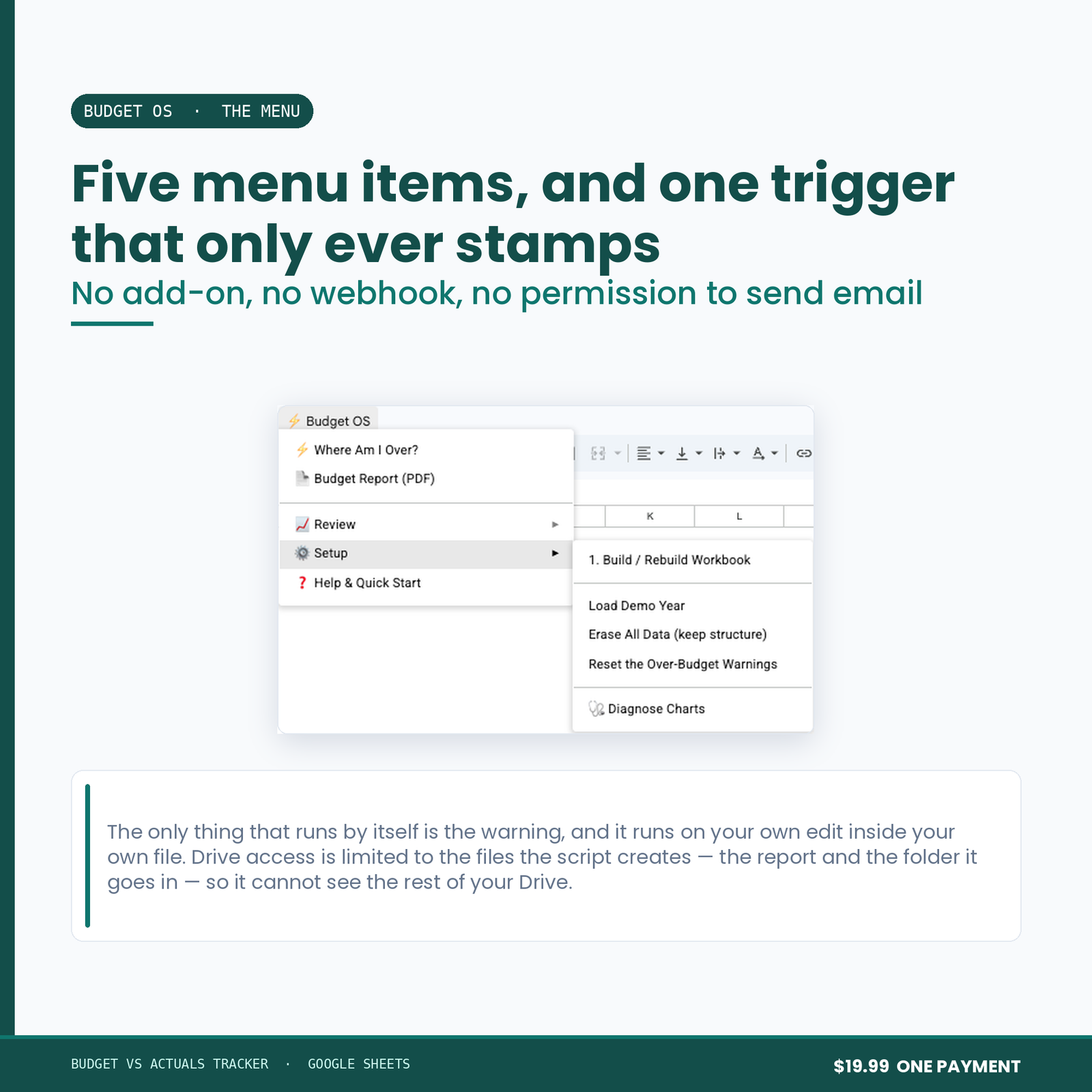
Plus a Where Am I Over? panel built into the workbook itself.
The charts:
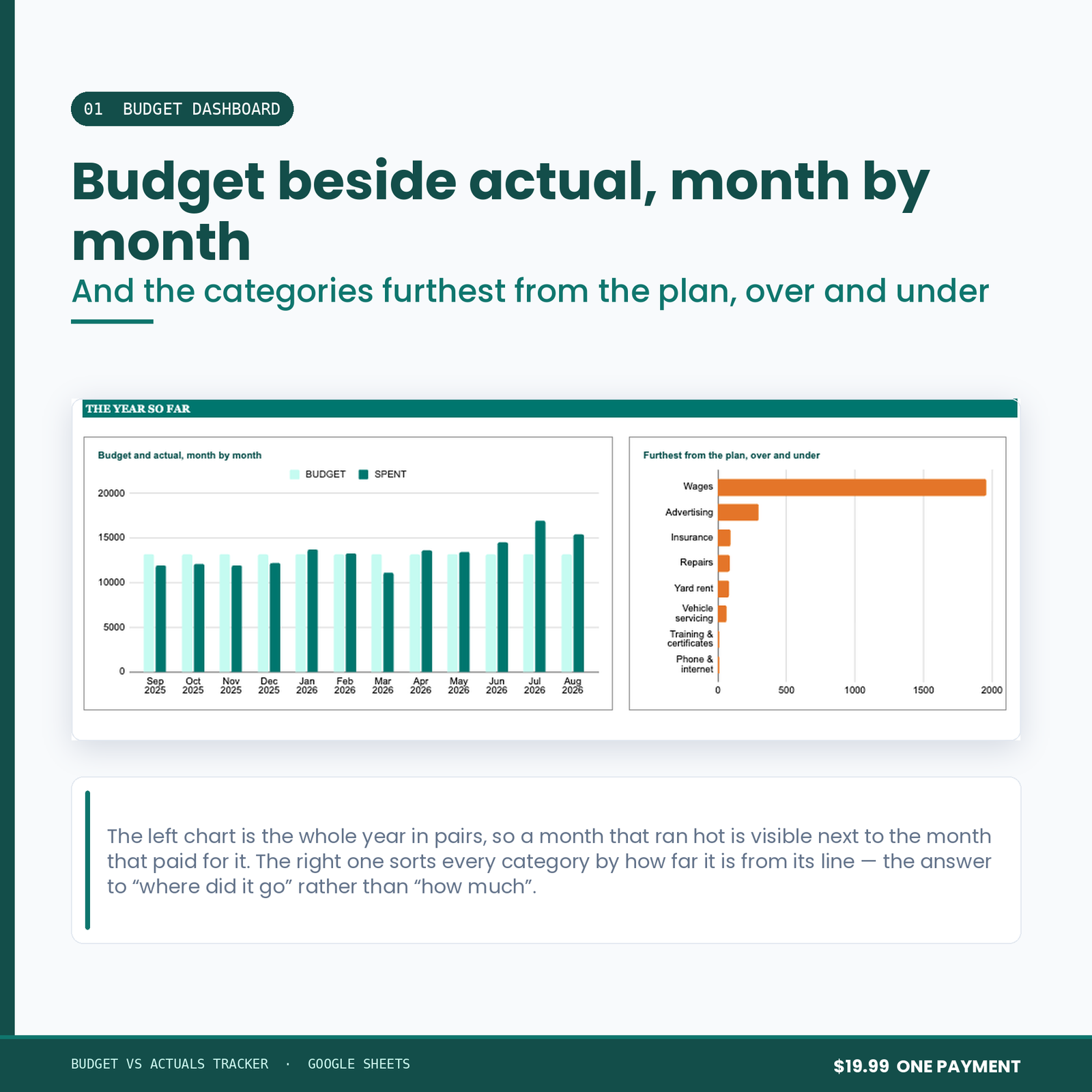
- Budget and actual, month by month — a column chart.
- Furthest from the plan, over and under — a bar chart, so the category that needs you is the top row.
What it refuses to do
Anyone can add up a column. This is the list that took the time.
It will not tell you in March that you are 70% under budget.
You are not under budget. You are three months into the year. Everything is measured against the part of the year that has actually happened, pro-rated to today, which is the only comparison that means anything before December.
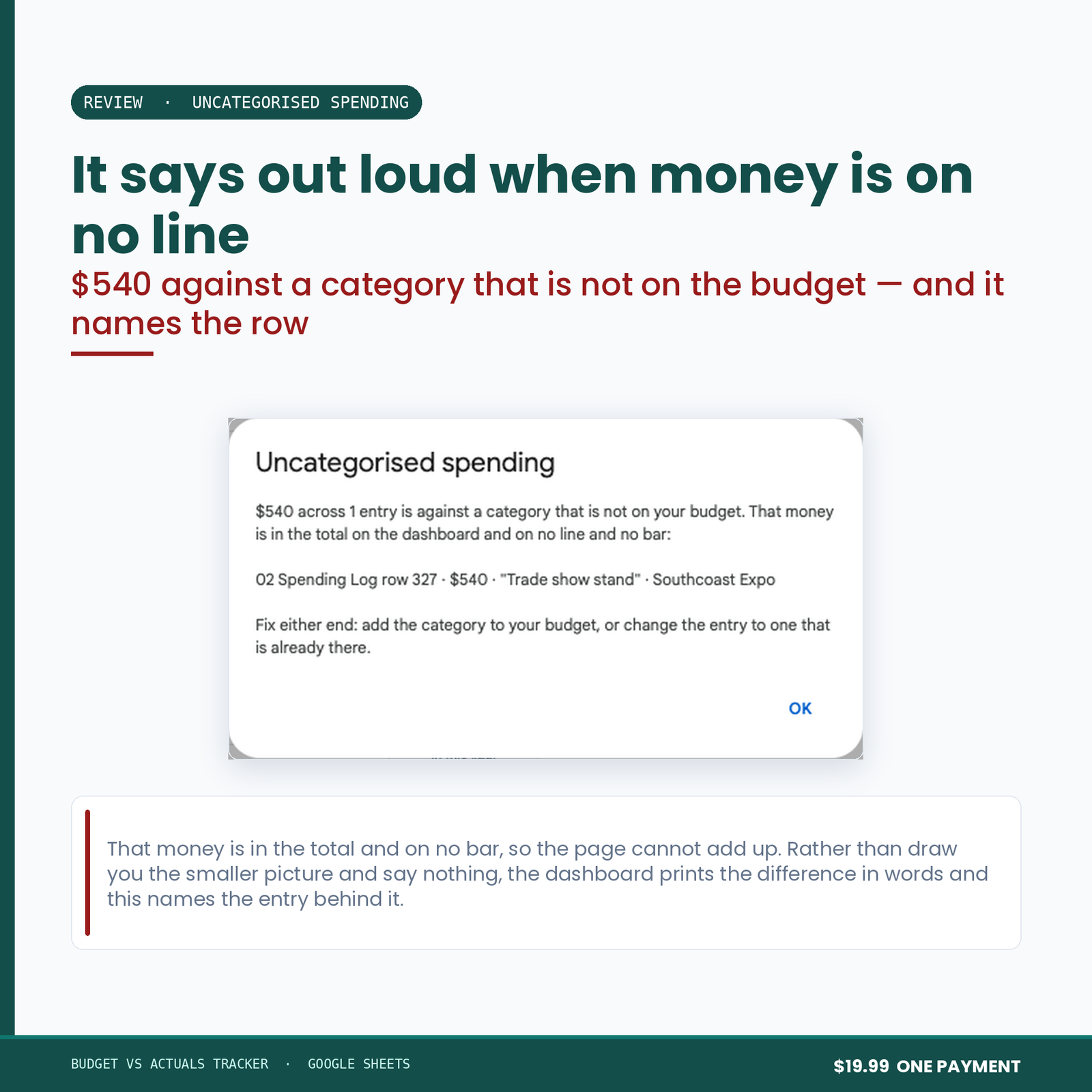
A category with no budget is not at infinity per cent.
It is an em dash. Nobody set a budget, so there is no variance against it to report.
The over-budget warning does not depend on a dialog.
A simple trigger is not always allowed to open one. The toast fires first and always; the dialog is attempted afterwards, inside a try/catch. A warning that only ever arrived as a popup is a warning that silently stopped arriving.
It does not warn you nine times about the same category.
Once, on the crossing.
Nothing in this suite can email anyone
Not one of these five tools requests a Gmail permission of any kind. That is a stronger promise than a line in a description saying it would never do such a thing: it could not email your customer, your supplier or your accountant if a future version tried, because the permission to do it was never asked for.
Drive access is drive.file — only files the script itself creates. It cannot see the rest of your Drive. Your figures stay in your own Google account.
From purchase to working, in about fifteen minutes
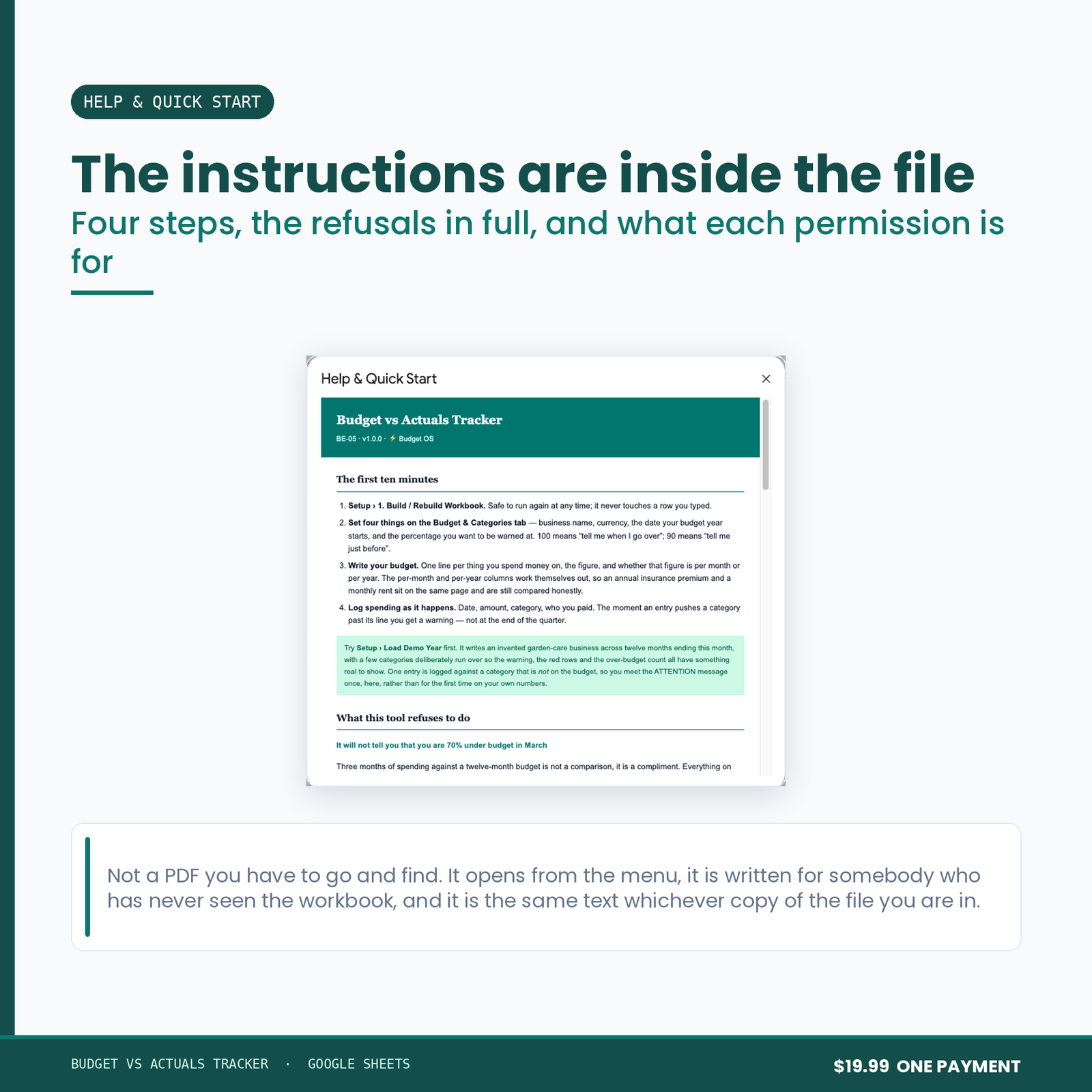
You get a link and a 10-page PDF setup manual. Press the link, and Google makes you your own copy of the workbook — there is no account to create, no add-on to install and nothing to paste into a script editor.
Open your copy, run ⚡ Budget OS → Setup → 1. Build / Rebuild Workbook, and it constructs every tab, formula, border and the chart itself. You format nothing. Then run Setup → Load Demo Year and look at it working on an invented business before you type a figure of your own — one menu item erases the demo again and leaves every formula in place.
Most of the fifteen minutes is you writing your own budget — one line per thing you spend money on, the figure, and whether that figure is per month or per year. The manual walks all of it, and lists the permissions Google will ask for with a written reason for each one.
What you need
A free Google account. It runs on Google Apps Script, so it will not work in Excel, Numbers or LibreOffice — said here rather than in a refund email.
Buying more than one
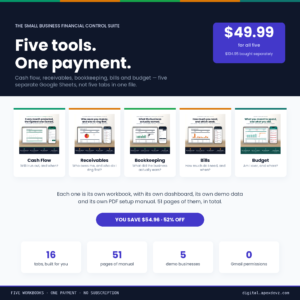
All five tools in this range are sold together as the Small Business Financial Control Suite for $49.99. Bought separately the five come to $104.95.
Before you buy
This is a spreadsheet, not an accountant. It applies no accounting standard, offers no assurance, and is not a substitute for a qualified accountant or bookkeeper. Nothing in it is tax, financial or legal advice, and nothing it produces has been approved by any authority. Every figure it shows is arithmetic on what you typed into it.